

Will this desktop pet run on your Mac?
DesktopCat supports Apple Silicon Macs running macOS 13 Ventura or later. Check both the operating system and the chip before downloading: a MacBook can meet the macOS requirement and still have an Intel processor. The current Mac installer is an Apple Silicon build, not an Intel or Universal download. If your Mac uses Intel, this release is not the right installer for you.
Open the Apple menu and choose About This Mac. Look for the chip and macOS version there, then compare them with the requirements on the download page. That page also lists the current release, file size, and SHA-256 checksum. Use it as the source for the latest installer rather than following an old file link from a forum or a saved message.
How to install your desktop pet for Mac
Open the download page, choose macOS, and download the DMG. Open the disk image, move DesktopCat into Applications, and launch the copy in Applications. You do not need a website account to download the free app or meet Mochi. Keep the download page open during setup so its installation steps are easy to refer to.
The current release is not notarized by Apple, so macOS may show a developer verification warning. If you trust the download and decide to proceed, first attempt to open the app, then go to System Settings → Privacy & Security and look for Open Anyway. Confirm the next prompt. This is an exception for that app; do not turn off system security globally. Apple’s guide below explains the warning and when an exception is appropriate.
A warning that software is damaged or will harm your computer is different from an unidentified-developer prompt. Do not treat every alert as an instruction to bypass protection. Download again from the official download page or contact support with the exact message. On a managed work or school Mac, installation and permission settings may be controlled by your administrator.
Show installation screenshots · 3 stepsExpand
Screenshots show a real DesktopCat 0.1.4 installation on a Mac using Chinese. Labels and positions may differ with your macOS version and language.
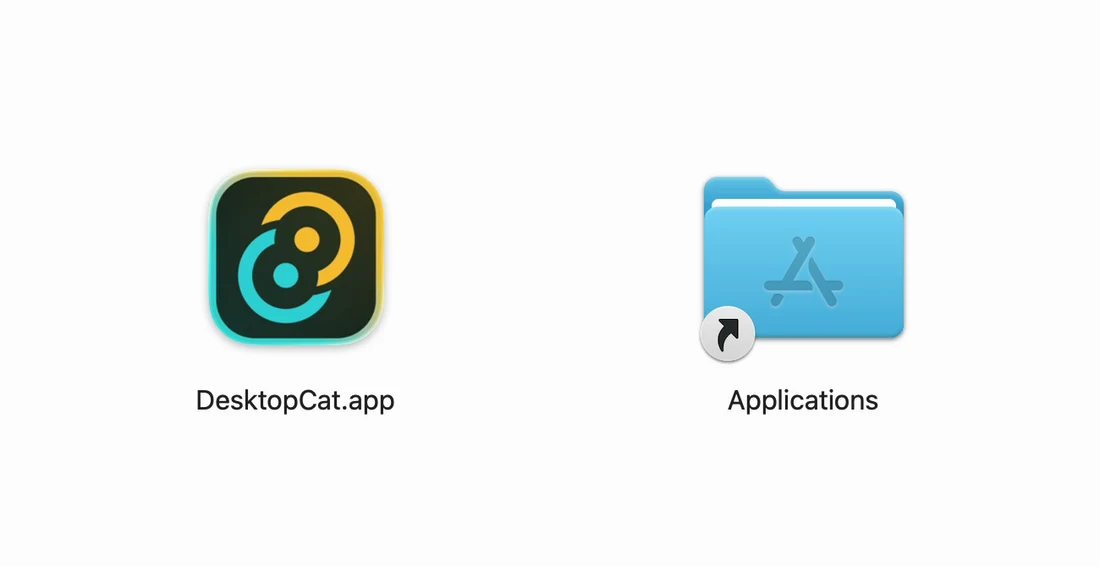
1. Copy the app, then open the installed copy
Open the downloaded DMG and drag DesktopCat.app onto Applications. Wait for copying to finish, then open Finder → Applications and double-click DesktopCat. Copying does not launch it automatically. The DesktopCat disk on your desktop is the mounted installer; you can eject it after installation. You do not need to copy the app again.
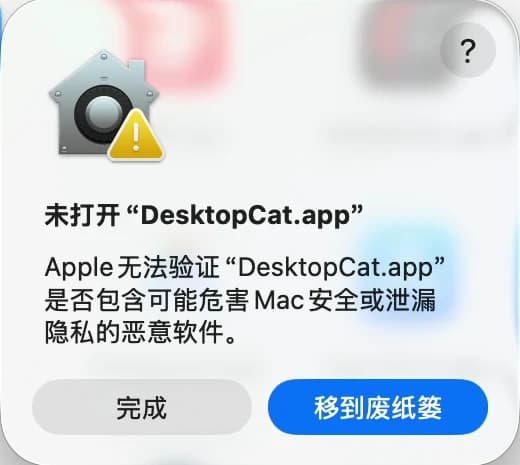
2. If macOS cannot verify the app, choose Done
For the current unnotarized release, you may see “Apple cannot verify DesktopCat.app”. Choose Done (完成), then follow the next step if you trust your official download. Do not choose Move to Trash if you intend to continue installing. A damaged-app or malware warning is different: contact support instead of following these steps.
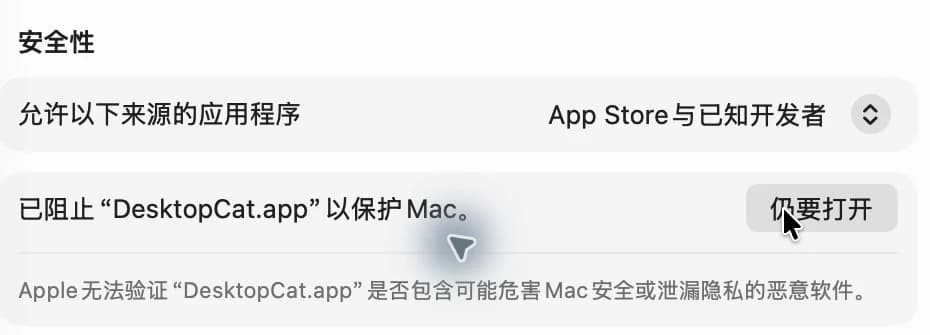
3. Allow this app in Privacy & Security
Open System Settings → Privacy & Security and scroll down to Security. Next to the DesktopCat blocked notice, choose Open Anyway (仍要打开). Complete any password or Touch ID check yourself and confirm the subsequent Open prompt. Mochi should appear when the app starts. You can choose Later in the app to try the cat before granting keyboard permissions.
Set up typing reactions and understand permissions
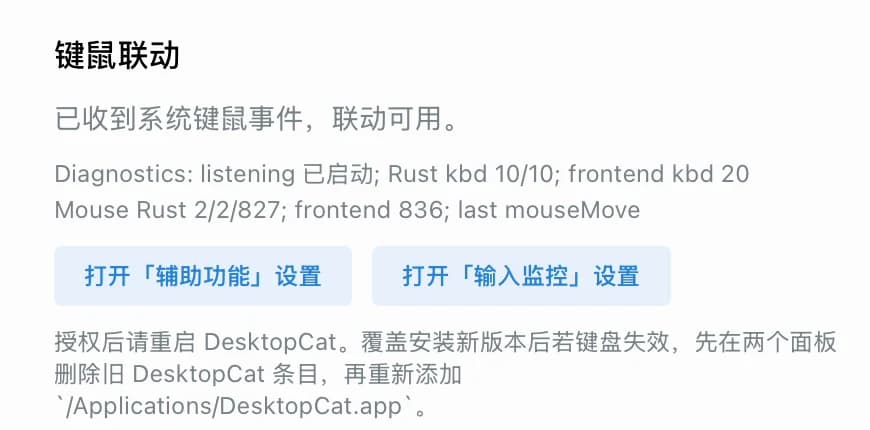
DesktopCat uses local keyboard and mouse events to drive its reactions. On macOS, follow the app’s prompts for Accessibility and Input Monitoring in System Settings → Privacy & Security. Check that the permission is attached to the installed DesktopCat app. If macOS asks you to quit and reopen the app after a change, do that before testing the typing response again.
The production app receives key press and release events, mouse buttons, and cursor positions locally. It does not reconstruct what you type into text, save those input events, or upload them. The app has no telemetry. These statements describe the desktop app: the website has separate analytics and account features, and custom orders involve uploaded photos. Read the privacy page before using those website services.
If Mochi appears but does not react when you type, check permissions before reinstalling. Make a note of your macOS version, chip, app version, and which permission switches are enabled. Those details help support distinguish an installation issue from an input permission issue. Do not include passwords, private documents, or anything you typed when sharing a screenshot.
Show typing setup screenshots · optionalExpand
Screenshots show a real DesktopCat 0.1.4 installation on a Mac using Chinese. Labels and positions may differ with your macOS version and language.
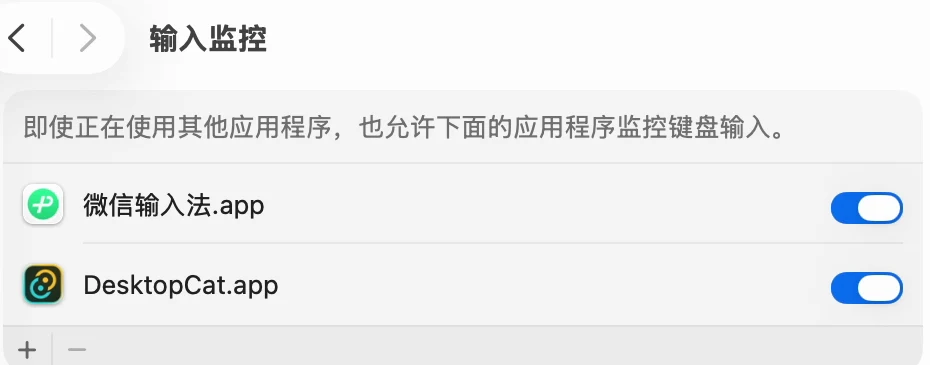
1. Optional: enable typing reactions
In DesktopCat settings, use Open Accessibility Settings and Open Input Monitoring Settings. In each system panel, enable the installed DesktopCat.app. If it is missing, use + to add the copy in Applications. Complete any system authentication yourself. This screenshot shows Input Monitoring (输入监控); check Accessibility (辅助功能) separately too. You can use the cat’s basic wandering, sleeping and dragging without these permissions.
2. Reopen DesktopCat and test typing
Quit and reopen DesktopCat after changing permissions. Type a few non-sensitive characters in a text editor and watch the cat react. If it does not, check both permission panels first. After an update, a stale permission entry may need to be removed and the installed app added again.
What Mochi does while you work
Mochi is a desktop companion with animated behavior: wandering, sitting, stretching, grooming, sleeping, and reactions to typing. You can pet the cat, interact with its tail, drag it to another position, feed it, and play with it. Try one interaction at a time when you first open the app so you can see how the cat responds.
The appeal is a small companion alongside your usual work. There is no hunger meter to maintain, no coin economy, and no promise that using a pet will improve your productivity. Feeding is an interaction, not a daily obligation. When you want the cat somewhere else, drag it to a more convenient spot instead of rearranging your whole workspace around it.
A website preview is only an introduction. The installed app is where system-level typing reactions and desktop interactions happen; a browser page does not reproduce the full experience. Start with the free Mochi character on your own Mac and decide whether the behavior suits your routine before considering additional characters.
Start free, then choose a cat you like
The DesktopCat app and Mochi are free, with no trial timer and no account required for the basic download. Optional official characters and custom cat production are separate purchases. You do not need to buy a character pass to unlock Mochi’s built-in interactions. Browse the official cats page if you want to see the currently listed characters after trying the app.
A custom cat is a separate service for people who want a character based on their own pet. A concept image is not a finished desktop pet: the complete character must be produced and delivered as an importable package. Use the custom page for the current process and purchase availability. This Mac guide does not require you to upload a photo, register, or place an order.
Before your first download
Can I use it on an Intel Mac? The current macOS release supports Apple Silicon only. Check About This Mac instead of assuming that any computer running a recent macOS version is compatible. A Windows installer is also available on the download page, but it is a separate platform build.
Is this a browser extension or a wallpaper? Neither: DesktopCat is an installed desktop app. Its cat has interactive animations and responds to local input events. A wallpaper download or a browser-only pet serves a different purpose, so check that you are downloading the app from the official website.
Can I switch languages? The same app includes English and Simplified Chinese, with a follow-system option. You do not need a second installer to change the interface language. The website also has a Chinese version of this guide if you prefer to read the setup instructions in Chinese.
Ready to try a desktop pet for Mac? Check your chip and macOS version, get the current installer, and follow the permission prompts. The download page keeps release details and installation instructions together. If something stops you, visit support with the exact error rather than repeatedly changing security settings.