
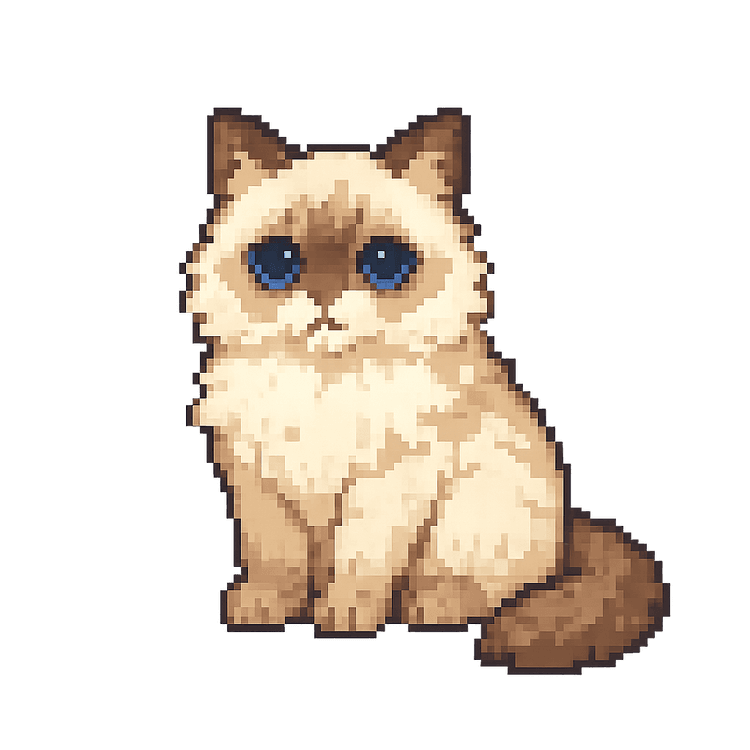
What Is a Desktop Pet?
A desktop pet is an animated character that lives on your computer screen, above your other windows. It is not a wallpaper and not a game you open in a window: it walks, sits, sleeps, and reacts while you keep working in your usual apps. Some pets only wander on a loop; others respond to what you do, such as moving the mouse, clicking on them, or typing.
The difference between a pet you keep and one you uninstall after a day is mostly in the animation. A character with only a few movements repeats itself quickly. More distinct animation states — idle, walking, grooming, sleeping, reacting to touch — and smooth transitions between them make the character feel like it has habits rather than a loop. Every DesktopCat character, for example, is built with 28 animation states.
A desktop pet is a companion, not a productivity tool. Some come with care mechanics such as hunger meters or coins; others, like DesktopCat, have none and simply keep you company.
Desktop Pets on Mac vs Windows
Not every desktop pet has a Mac version. On a Mac, check that the app runs natively on your chip and macOS version rather than relying on extra runtimes or workarounds. DesktopCat's Mac build supports Apple Silicon Macs on macOS 13 or later; it is not an Intel or Universal build.
Permissions also differ. On macOS, a pet that reacts to typing or to the mouse anywhere on screen needs your approval under Accessibility and Input Monitoring in System Settings. On Windows, DesktopCat needs no special permissions after install. Its Windows build supports Windows 10 and 11, 64-bit, on Intel or AMD processors.
Both platforms may show a warning the first time you open software that is not signed or notarized. DesktopCat is currently not notarized by Apple or code-signed on Windows, so expect that warning on first launch. For Mac-specific setup — checking your chip, the security prompt, and permissions — read the desktop pet for Mac guide.
Free vs Paid Desktop Pets
Free desktop pets range from hobby projects to full apps. Paid models vary: some charge for the app, some sell extra characters, and some use subscriptions. Before paying, check what the free version already does and whether a purchase is one-time or recurring.
DesktopCat's app and its ragdoll cat Mochi are free, with no trial timer, no account, and all interactions unlocked. The optional official cat pass is a one-time US$4.90 payment for five more cats — Tabby, British Shorthair, Black Cat, Tuxedo Cat, and Calico Cat — plus official cats released later. It is not a subscription, and Mochi stays fully usable without it: the pass adds more cats to choose from. If you want your own pet as the character, a custom cat is a separate service. See the official cats or pricing for current details.
How to Choose a Desktop Pet
Animation quality. Watch a video or try the free version. Count how many different things the character does, and whether it moves between them smoothly or snaps from one loop to another.
System load. A pet is always on screen, so its resource use matters more than for an app you open occasionally. Leave it running for a few minutes, then check Activity Monitor or Task Manager while it rests and while it moves. On a laptop, watch battery drain over a normal working session.
Platform support. Confirm your exact operating system version and, on a Mac, your chip. An app listed for "Mac" may still exclude Intel or Apple Silicon models.
Permissions and privacy. Find out what the app asks for and why. A pet that reacts to typing needs keyboard events; it should not need to store or upload what you type.
Updates. Look at when the app was last updated and how updates arrive. DesktopCat never updates on its own: you install a new version from Check for updates in the app or from the download page.
How to Install One
Get the installer from the developer's official page rather than a mirror or an old link from a forum. For DesktopCat, open the download page and choose your system — no account is needed.
On a Mac, open the DMG, drag DesktopCat into Applications, and launch it. If macOS says the developer cannot be verified, go to System Settings → Privacy & Security and choose Open Anyway, then allow Accessibility and Input Monitoring when asked so the cat can react to typing and the mouse.
On Windows, run the installer. If SmartScreen shows "Windows protected your PC," choose More info, then Run anyway, and finish the setup wizard. Mochi appears on your desktop once the app is running.
FAQ
What is a desktop pet?
A small animated character that lives on top of your other windows. It walks around, rests, and reacts when you interact with it, while you keep using your computer as usual.
Are desktop pets safe?
It depends on where it comes from and what it asks for. Download from the developer's official site or store page, check which system permissions it requests and why, and read its privacy statement. Be careful with repackaged installers from file-sharing sites. Treat a warning that a file is damaged or malicious differently from a warning that a developer is unverified.
Are desktop pets free?
Many are, and some are paid or free with optional extras. DesktopCat itself and its Mochi character are free with no trial timer and no account; extra official cats are an optional one-time US$4.90 pass.
Do desktop pets use a lot of CPU or battery?
A desktop pet is redrawn continuously while it moves, so it always uses some resources, and constant motion costs more than a pet that is resting. The actual cost depends on the app and your computer. Check it yourself in Activity Monitor on a Mac or Task Manager on Windows, both while the pet is still and while it is moving.
How do I install a desktop pet?
Download the installer for your system from the official site, install it like any other app, approve any permissions it needs, and launch it. The pet appears on your desktop once the app is running.